Steps
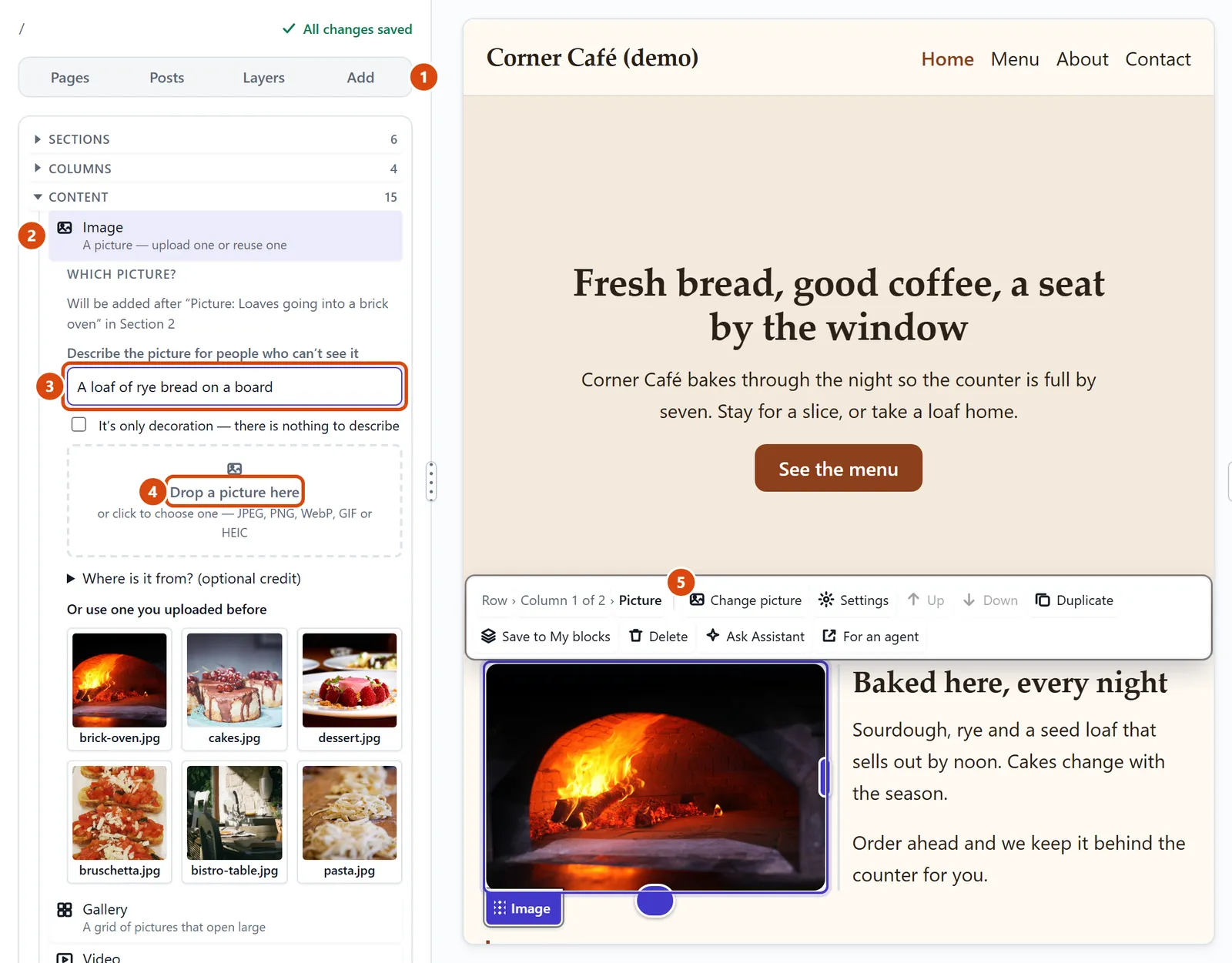
In the left sidebar, open Add.
Under Content, drag Image onto the page where you want it. A box called “Which picture?” opens in the sidebar.
Type a few words about the picture in Describe the picture for people who can’t see it. Someone who can’t see it hears these words instead, and Google reads them too.
Drop your photo on Drop a picture here, or click it to choose one. JPEG, PNG, WebP, GIF or an iPhone photo (HEIC) all work, and big photos are made smaller for you.
The picture appears on the page straight away. To change it later, double-click it on the page, or press Change picture on the bar above it.
Or ask the Assistant: “Add one of the pictures I’ve already uploaded to the end of the welcome section.”
Tip: Uploaded it before? Pick it under “Or use one you uploaded before” in the same box instead of uploading it again.