Steps
Click the picture on the page to select it.
Its settings show on the right, with size and shape under Layout. If you see the Assistant there instead, press Settings.
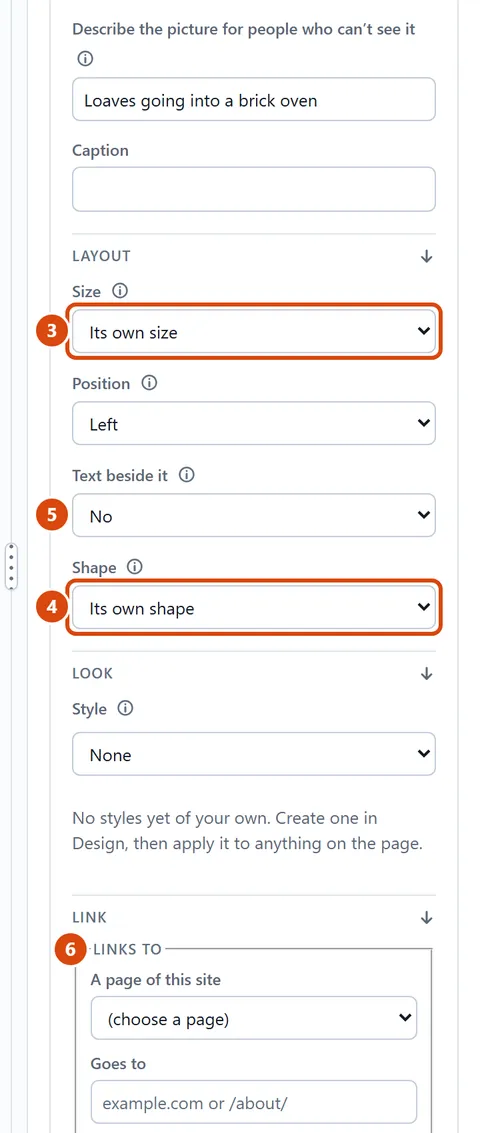
Pick a Size: Its own size, Small, Medium, Large or Full width.
To change its shape, pick a Shape, such as Square, Widescreen or Portrait. Then Fill the shape lets you crop the edges or show all of it, and Keep in view picks the part that stays.
To have words run down beside it, choose a side in Text beside it. On phones the picture sits above the words instead.
To make it a link, choose a page or type a web address in Links to, under Link.
Or ask the Assistant: “Make the picture in the first section square and half as wide.”
Tip: Quicker: drag the picture’s edge on the page, and a label tells you the size as you go. Words under it go in Caption, under Content.
Related: Add a picture · Add columns, or make one wider
Next: Add a gallery and choose its pictures
Still stuck? Contact support