Steps
In the left sidebar, open Add.
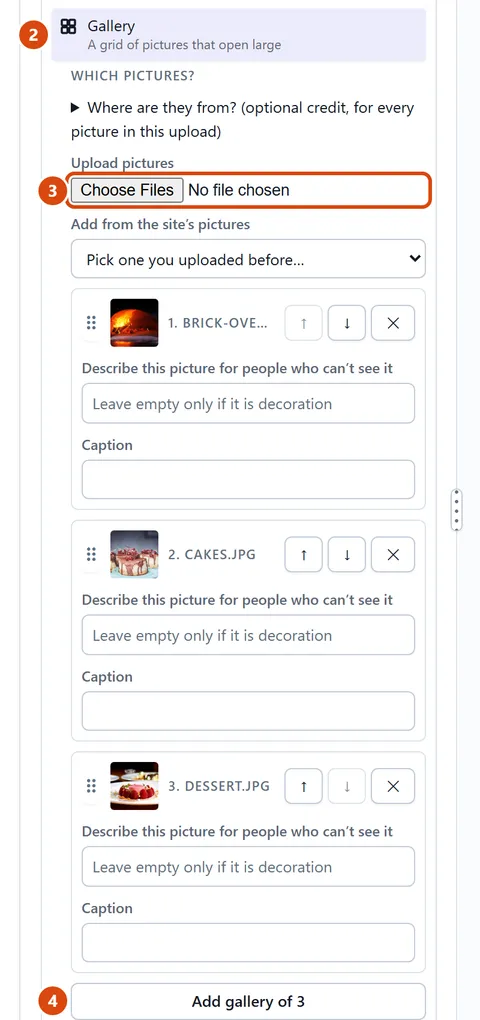
Under Content, drag Gallery onto the page where you want it. A box called “Which pictures?” opens.
Press Upload pictures (or the button under it) and choose your photos. You can pick several at once.
Press Add gallery of …. It says how many pictures you chose, for example “Add gallery of 6”.
To change it later, click the gallery on the page. Its pictures are listed on the right, under Pictures.
Drag a picture’s dotted handle to move it, or press the cross on its row to take it out. Every change saves at once.
Or ask the Assistant: “Show 4 pictures per row in the gallery on my Work page.”
Tip: Photos already on your site? Choose them in “Add from the site’s pictures” instead of uploading them again.
Related: Add a picture · Why can’t I upload a picture?
Next: Why can’t I upload a picture?
Still stuck? Contact support