Steps
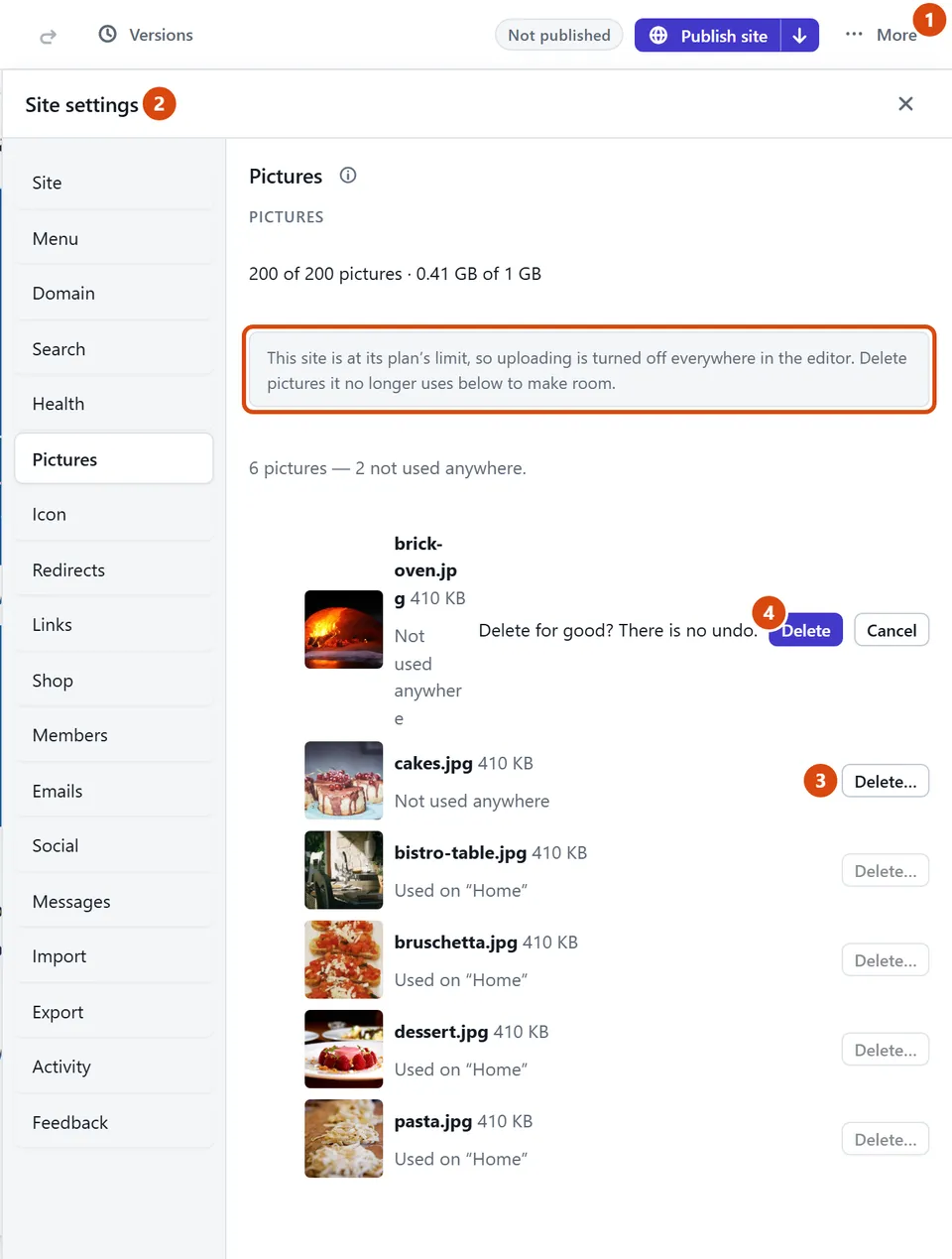
At the top of the editor, open More.
Choose Site settings, then open Pictures. The line at the top says how many pictures your site holds and the space they take, for example “37 of 200 pictures · 0.1 GB of 1 GB”.
If it says “This site is at its plan’s limit”, uploading is off everywhere until you make room. Find a picture marked “Not used anywhere” (they are listed first) and press Delete… beside it.
Press Delete to confirm. There is no undo, so only delete pictures you don’t need.
Need more room than that? On a Free site, press Upgrade in the More menu. Pro holds 5,000 pictures and 20 GB.
Or ask the Assistant: “Which pictures on my site aren’t used anywhere?”
Tip: Pictures you uploaded before still work while uploading is off. If one file is refused, check its type: JPEG, PNG, WebP, GIF or an iPhone photo (HEIC) work, SVG doesn’t, and a GIF must be under 10 MB.
Related: Add a picture · Add a gallery and choose its pictures
Next: Add a page
Still stuck? Contact support