Add columns, or make one wider
Put things side by side in two or three columns, and choose how wide each column is.
Steps
Open Add in the left sidebar, and look under Columns.
Drag Two columns, Three columns or Wide and narrow onto the page.
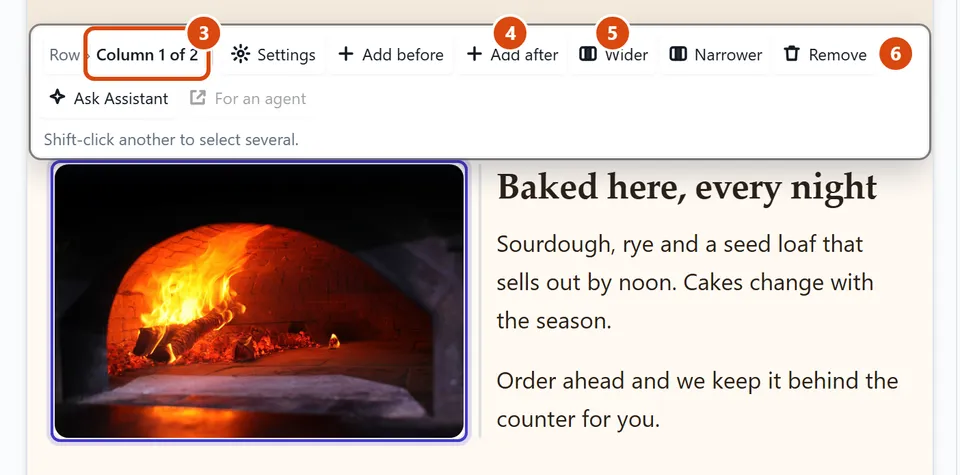
To change a column, click inside it, then click its name in the small bar above it, such as Column 1 of 2.
Press Add after on the bar for a new column to its right. Add before puts one on its left.
Press Wider or Narrower to change its width. You can also drag the line between two columns.
Press Remove to take the column away, along with what is in it.
Or ask the Assistant: “Make the row under the welcome band three columns, and make the first one wider.”
Tip: To keep what is in a column, press Settings on its bar and choose Merge into the column on the left instead of Remove.
Related: Make it look right on phones · Move something up or down
Next: Move something up or down
Still stuck? Contact support