Make it look right on phones
See your page the way a phone shows it, and hide a column or move it to the top, just for phones.
Steps
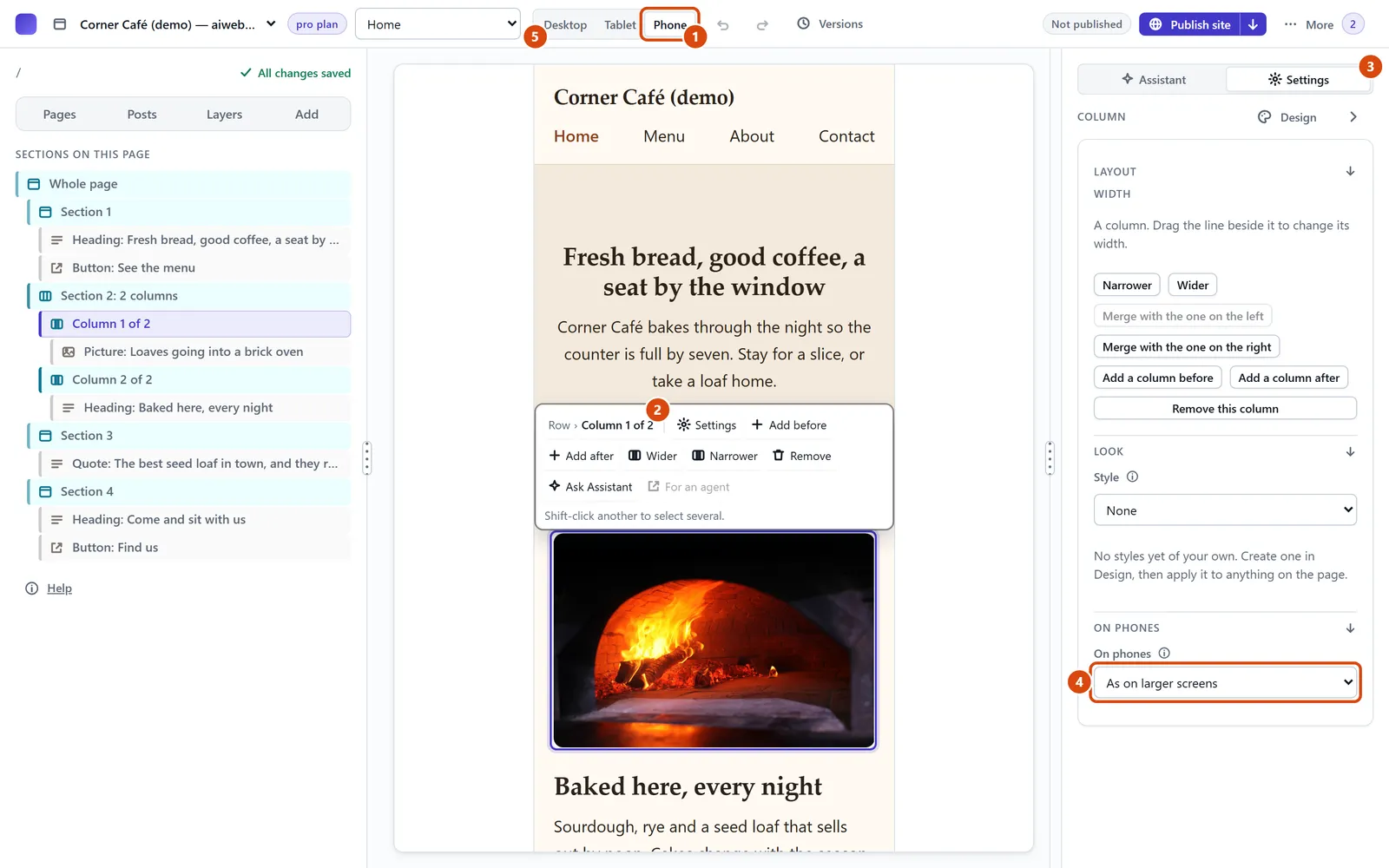
At the top of the editor, press Phone in the Desktop, Tablet and Phone switch.
On the page, click inside the column you want to change, then click its name in the small bar above it, such as Column 1 of 2.
Open Settings in the right-hand panel.
In the On phones list, choose Hide on phones or Show first on phones. Computers and tablets don’t change.
Press Desktop to go back to the full-width view.
Or ask the Assistant: “On the home page, hide the picture column on phones.”
Tip: Can’t see the Desktop, Tablet and Phone switch? It hides when the editor window is narrow, so make the window wider.
Related: Add columns, or make one wider · Find your way round the editor
Next: Add questions and answers
Still stuck? Contact support