Steps
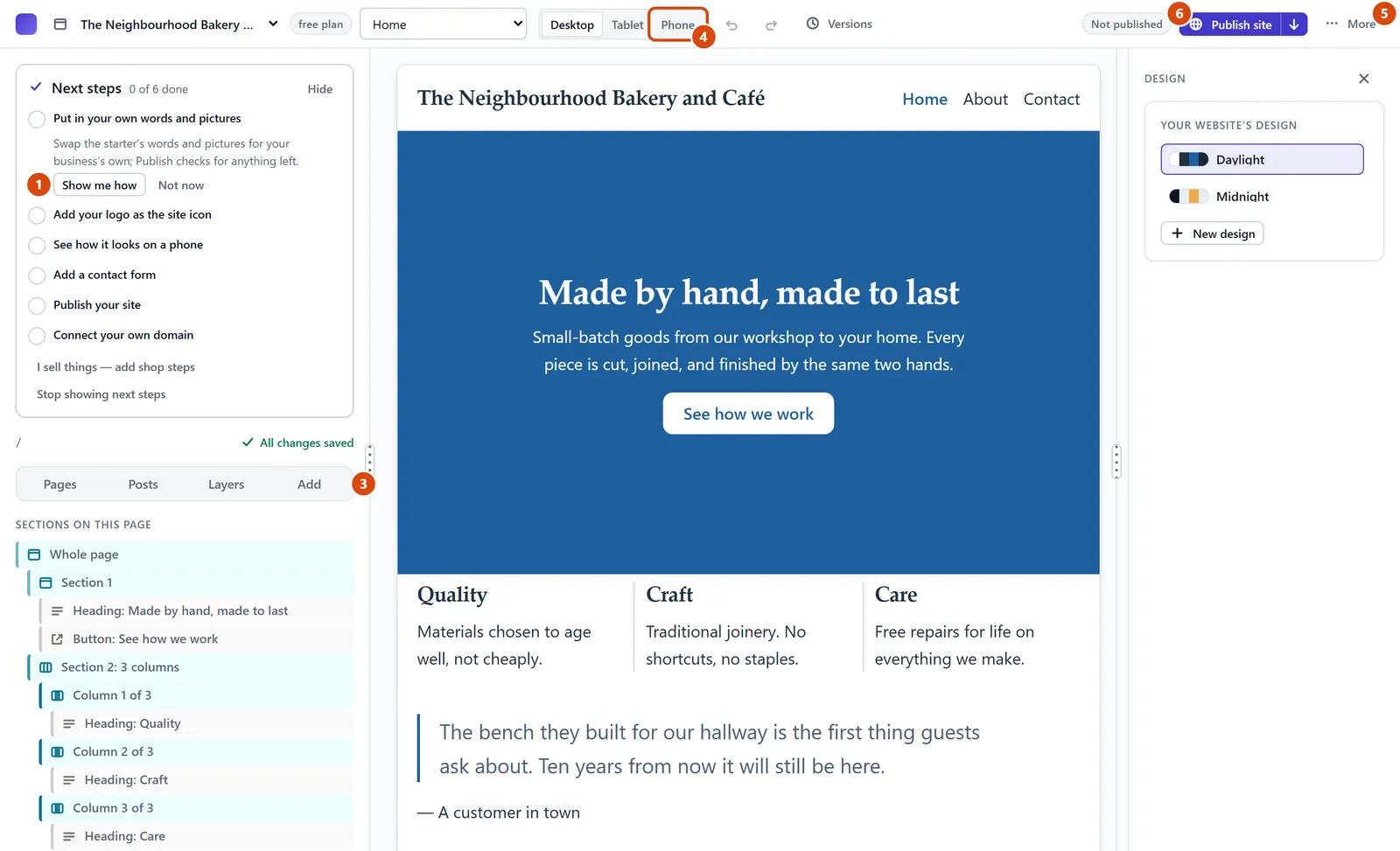
Look at the “Next steps” card at the top of the left panel. It lists what to do next. Press Show me how on a step to see how it’s done.
Click anything on the page in the middle. A small bar appears on it, and its settings open in the panel on the right.
To add something new, open Add in the left panel and drag a block onto the page where you want it.
To see your page as a phone shows it, press Phone at the top. Desktop takes you back.
For your site’s settings, help and your other websites, open More at the top right.
When you’re happy, press Publish site to put your changes on the web.
Or ask the Assistant: “How do I add a picture to my home page?”
Tip: Can’t see Desktop, Tablet and Phone? Your window is narrow, so the page already shows at phone size. Make the window wider to get them back.