Steps
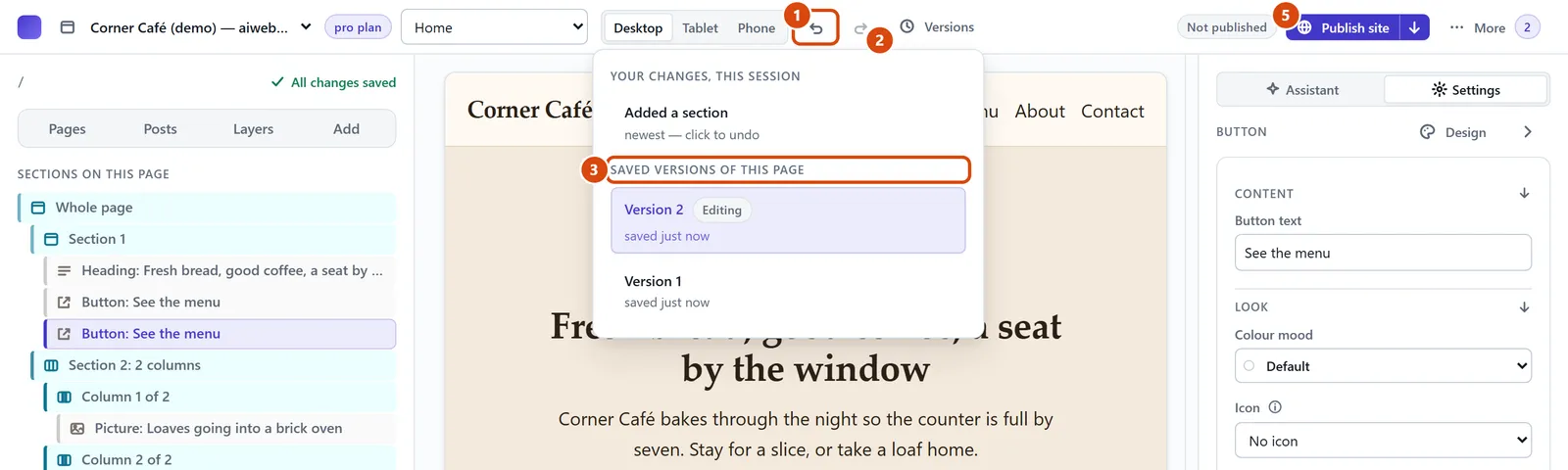
Press Undo at the top (the arrow curving left), or press Ctrl+Z (Cmd+Z on a Mac). It takes back your last change.
Changed your mind again? Press Redo, or Ctrl+Y (Cmd+Shift+Z on a Mac).
To go back further, open Versions at the top. Under “Saved versions of this page”, press the one you want. You can look at it; nothing changes yet.
To use that version, press Restore this version. Or press “Back to now” to leave it as it is.
Restoring doesn’t touch your live site. When you’re ready, press Publish site.
Or ask the Assistant: “Put the home page back to how it was this morning.”
Tip: Undoing something the Assistant did? Press “Undo what the Assistant did” under its answer instead.
Related: Ask the Assistant to do it for you · Put your site on the web
Next: Change words, or make a line a heading or a list
Still stuck? Contact support