Change words, or make a line a heading or a list
Fix a typo, rewrite a sentence, or turn a line into a heading or a list.
Steps
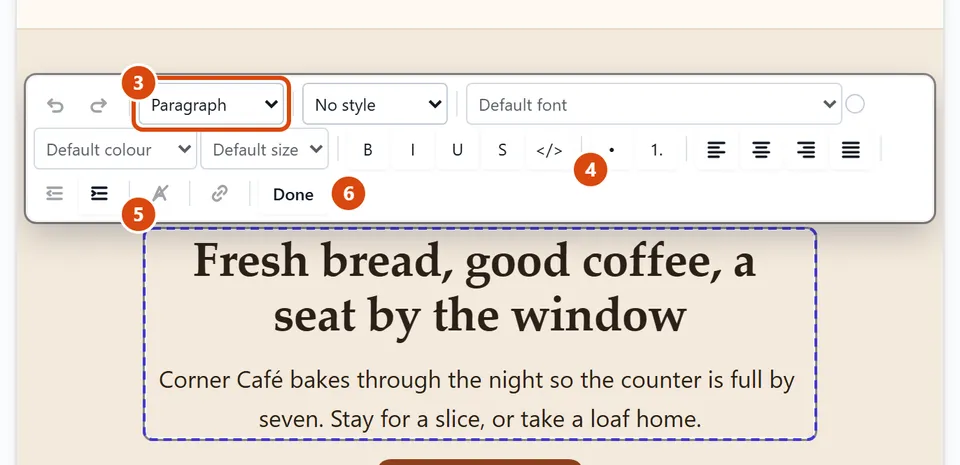
Double-click the words on the page. A bar of tools appears over the text, and you can type.
Select the words you want to change and type over them. Press Enter to start a new paragraph.
To make a line a heading, click into it, open Block type (it shows “Paragraph”) and choose a heading, such as Heading 2.
To make lines a list, select them and press Bulleted list (•) or Numbered list (1.).
To take bold, italics and links off some words, select them and press Clear formatting (the crossed-out A).
Press Done when you’ve finished. Your changes save by themselves.
Or ask the Assistant: “On the home page, change ‘Open daily’ to ‘Open every day except Monday’.”
Tip: Your changes save as you go, but visitors only see them after you press Publish site.
Related: Put some words in a different font · Link words to a page or another site
Next: Put some words in a different font
Still stuck? Contact support