Steps
Open More › Site settings › Shop, and choose Products in the Show list.
Press Add a product.
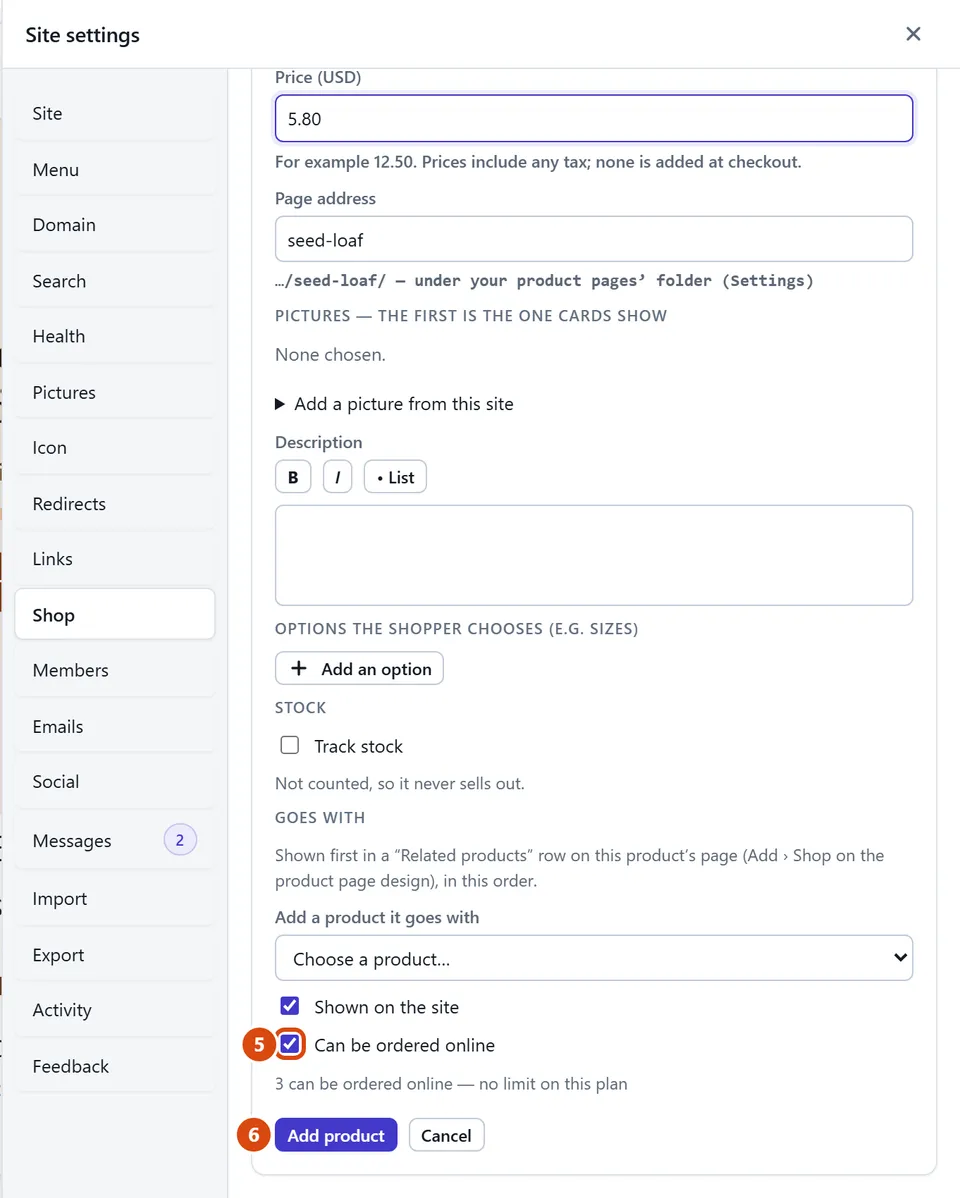
Type its Name and Price.
Choose what a buyer gets in What a sale gives: something you hand over or ship, pages only buyers can open, or a file to download (the last two need Pro). For a file, upload it under “The file a buyer gets”.
Leave Can be ordered online ticked to sell it, or untick it to only show it, like a menu. On the Free plan, up to 3 products can be ordered online. Ones you only show don’t count.
Press Add product.
Or ask the Assistant: “Add a product called Sourdough loaf, 4.50, that people collect from the shop.”
Tip: Products show “Not available to buy online yet” until a Stripe account (a free service that takes card payments for you) is connected in the Shop’s Payments. Selling something similar? Press the copy icon (Duplicate) on its row.
Related: Put products on a page · Count stock so you never oversell
Next: Put products on a page
Still stuck? Contact support