Add a section
A section is a band across the page, such as a big welcome picture, a short block of words or three points side by side.
Steps
On the page, click the section your new one should come after.
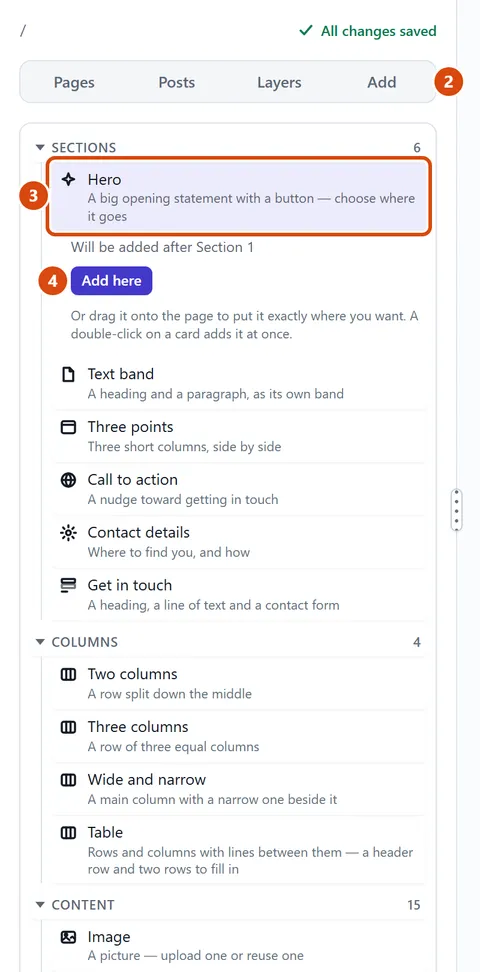
Open Add in the left sidebar, and look under Sections: Hero, Text band, Three points, Call to action, Contact details and Get in touch.
Drag a card, such as Hero, onto the page and let go where you want it.
Or click the card once, check the line that says where it will go, and press Add here. Double-clicking the card does the same.
Or ask the Assistant: “Add a section after the welcome band with three points: our opening hours, our prices and where to find us.”
Tip: Clicking a card once only picks it. Nothing changes on the page until you drag it, double-click it or press Add here.
Related: Add text, a button, a divider or social links · Move something up or down
Next: Add text, a button, a divider or social links
Still stuck? Contact support