Add text, a button, a divider or social links
Put words on the page, a button people can press, a line to split things up, or icons that link to your social pages.
Steps
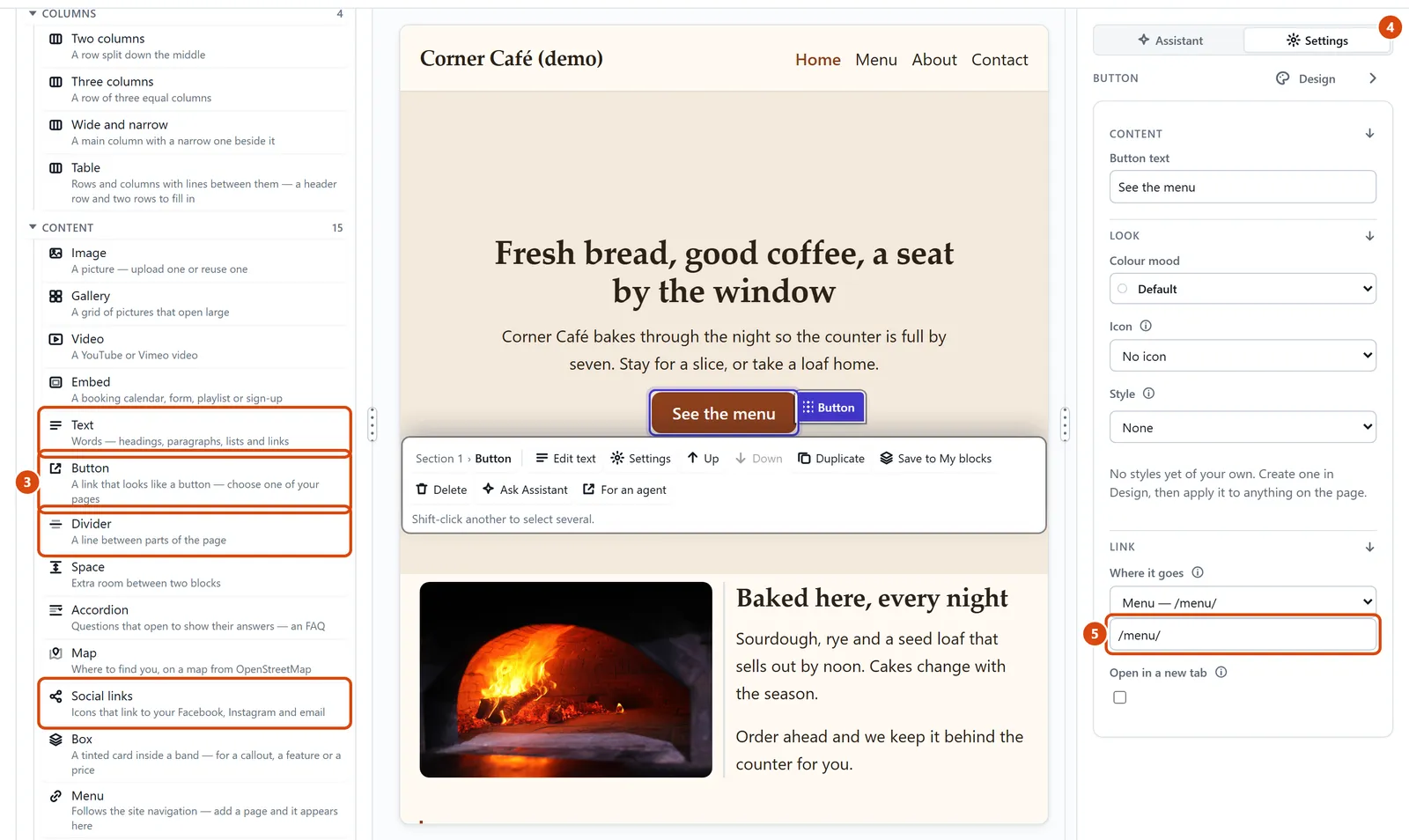
On the page, click the part your new piece should come after.
Open Add in the left sidebar, and look under Content.
Drag Text, Button, Divider or Social links onto the page. You can also double-click the card to add it after the part you picked.
For a button, click it on the page, then open Settings in the right-hand panel.
Pick the page it should open from the Where it goes list, and type its words in Button text.
Or ask the Assistant: “Add a button under the welcome text that says Book a table and goes to the Contact page.”
Tip: To open a button’s page in a new tab, turn on “Open in a new tab” under Where it goes. A menu link has the same switch: for a menu placed on the page, click the entry and turn it on in its Settings; for the site menu, tick “Open in a new tab” under the entry in More › Site settings › Menu, then press Save menu. A button can show a social icon too: pick one from Icon in its Settings.
Related: Link words to a page or another site · Add a section
Next: Add columns, or make one wider
Still stuck? Contact support