Add a contact form
A contact form lets visitors send you a message without leaving your site.
Steps
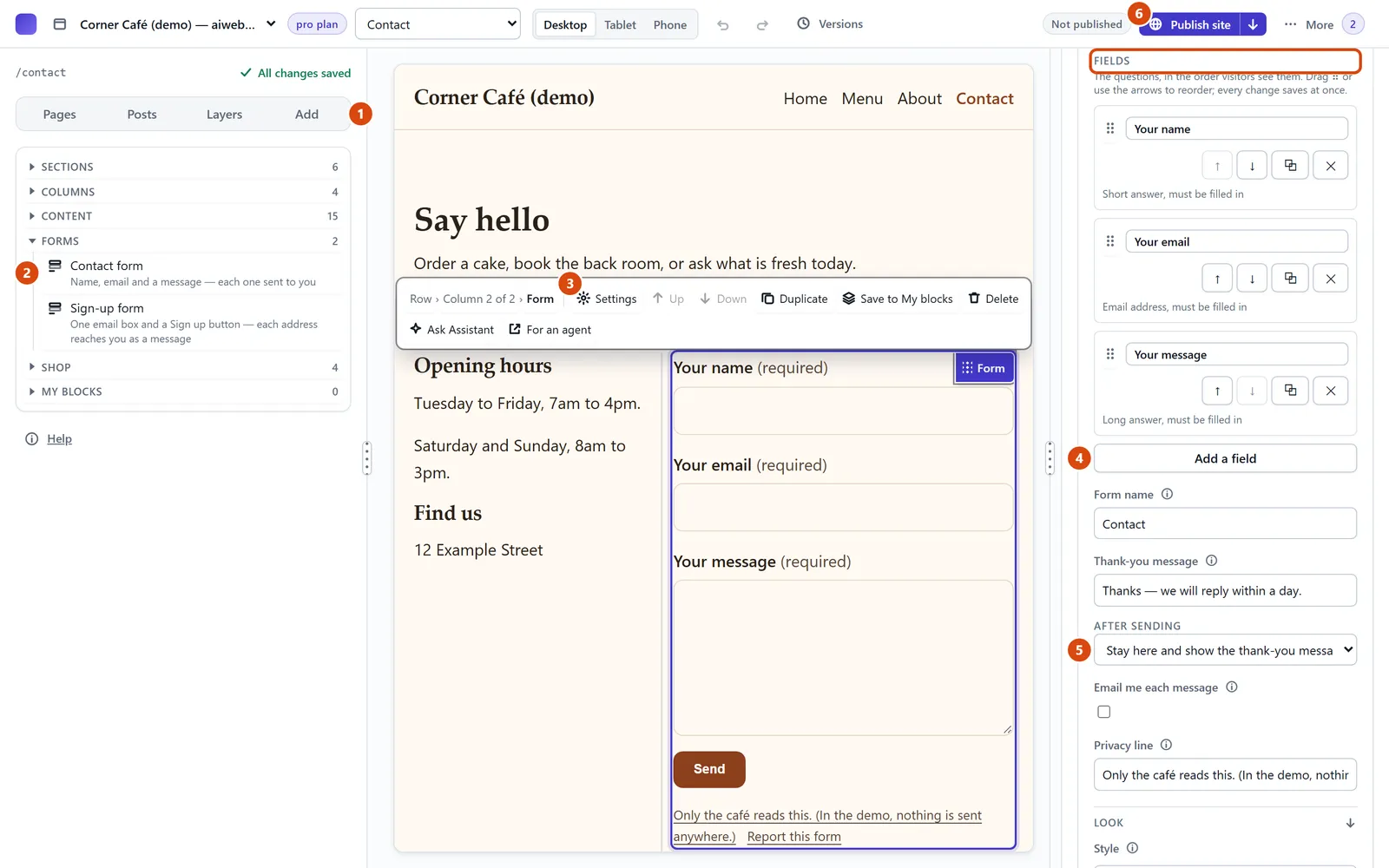
In the left sidebar, open Add.
Under Forms, drag Contact form onto the page where you want it. Or double-click it: it goes after the part of the page you have selected.
Click the form on the page, then open Settings on the right. Its questions are listed under Fields.
To ask something more, press Add a field and choose the kind of answer, such as Phone number. The new question goes just before the Send button.
Under After sending, keep “Stay here and show the thank-you message”, or choose one of your pages (a thank-you page, say) to send people to.
Press Publish site at the top. People can send the form once your site is live.
Or ask the Assistant: “Add a contact form to my Contact page that also asks for a phone number.”
Tip: Only want email addresses? Add Sign-up form instead. It asks for just an email, and each one reaches you as a message.
Related: Read your form messages · Put your site on the web
Next: Read your form messages
Still stuck? Contact support