Read your form messages
See what visitors sent through your forms, and answer them.
Steps
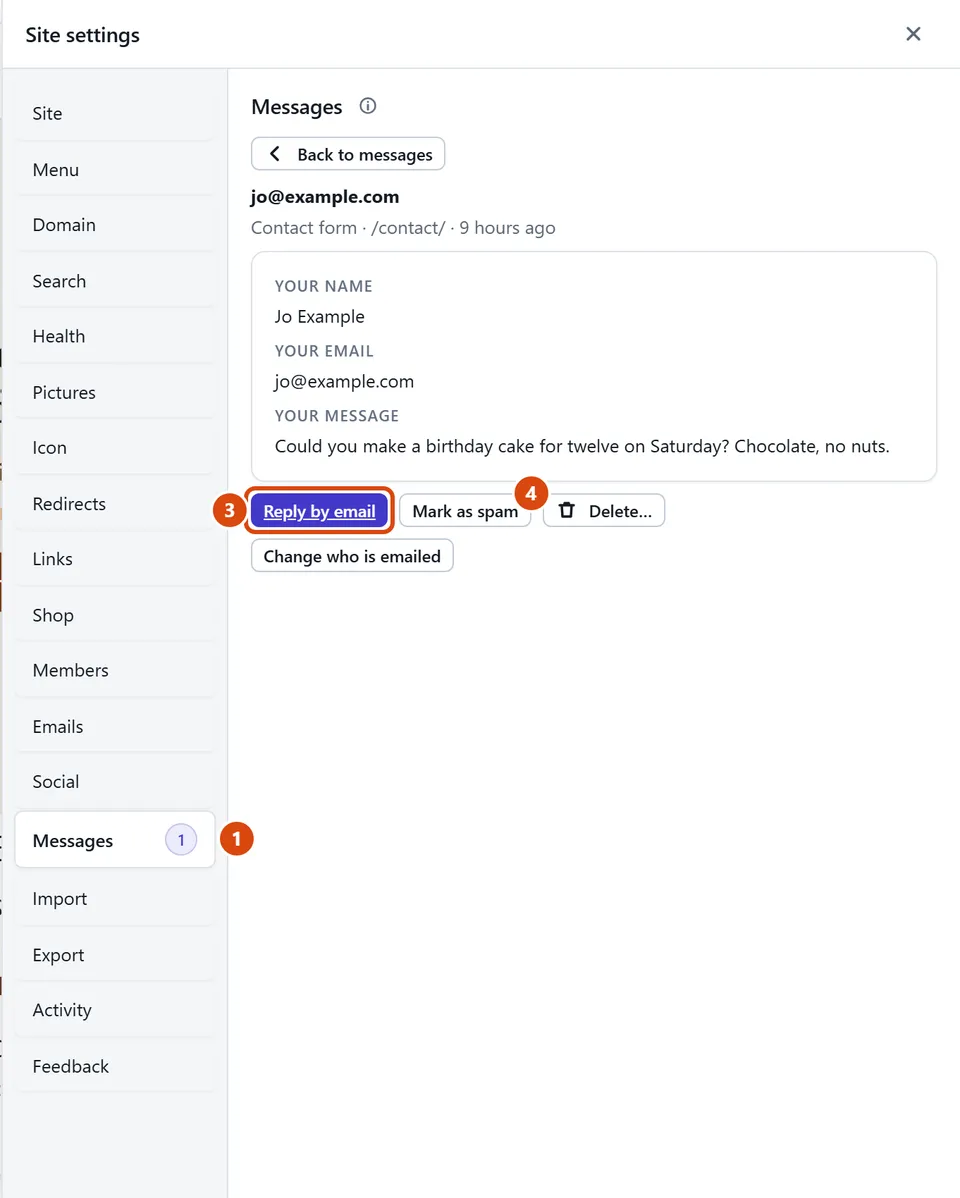
At the top, open More › Site settings, then press Messages. The number beside it is how many are new.
Choose New, All or Spam above the list, then click a message to read every answer. Opening it marks it read.
To answer, press Reply by email. Your email app opens with their address filled in. (It is only there when the form asked for an email address.)
Junk? Press Mark as spam. It moves to Spam and is deleted after 7 days, unless you bring it back.
To keep a copy of every message, press Download all as CSV. You get a spreadsheet file that opens in Excel or Google Sheets.
Or ask the Assistant: “Where do I find the messages from my contact form?” (It shows you the way. It never reads your messages, so your visitors’ details stay private.)
Tip: Not getting an email for each message? Open a message and press Change who is emailed. It picks out the form, so you can turn on “Email me each message” in its Settings.
Related: Add a contact form · Get help, or tell us something
Next: Write a blog post
Still stuck? Contact support