Help › Pages and the menu

Put a page in the menu

The site menu is the row of links at the top of every page. Here’s how to add a page, or a link to another website.

Steps

  1. Click the menu on your page to select it.

  2. Press Edit menu on the bar above it. The Menu panel opens. (You can also get there from More › Site settings › Menu.)

  3. Under “Not in the menu”, press Add to menu beside the page you want.

  4. To link to another website instead, type its words and address under “Add an outside link”, then press Add link.

  5. Press Save menu.

  6. Press Publish site at the top so visitors see the new menu.
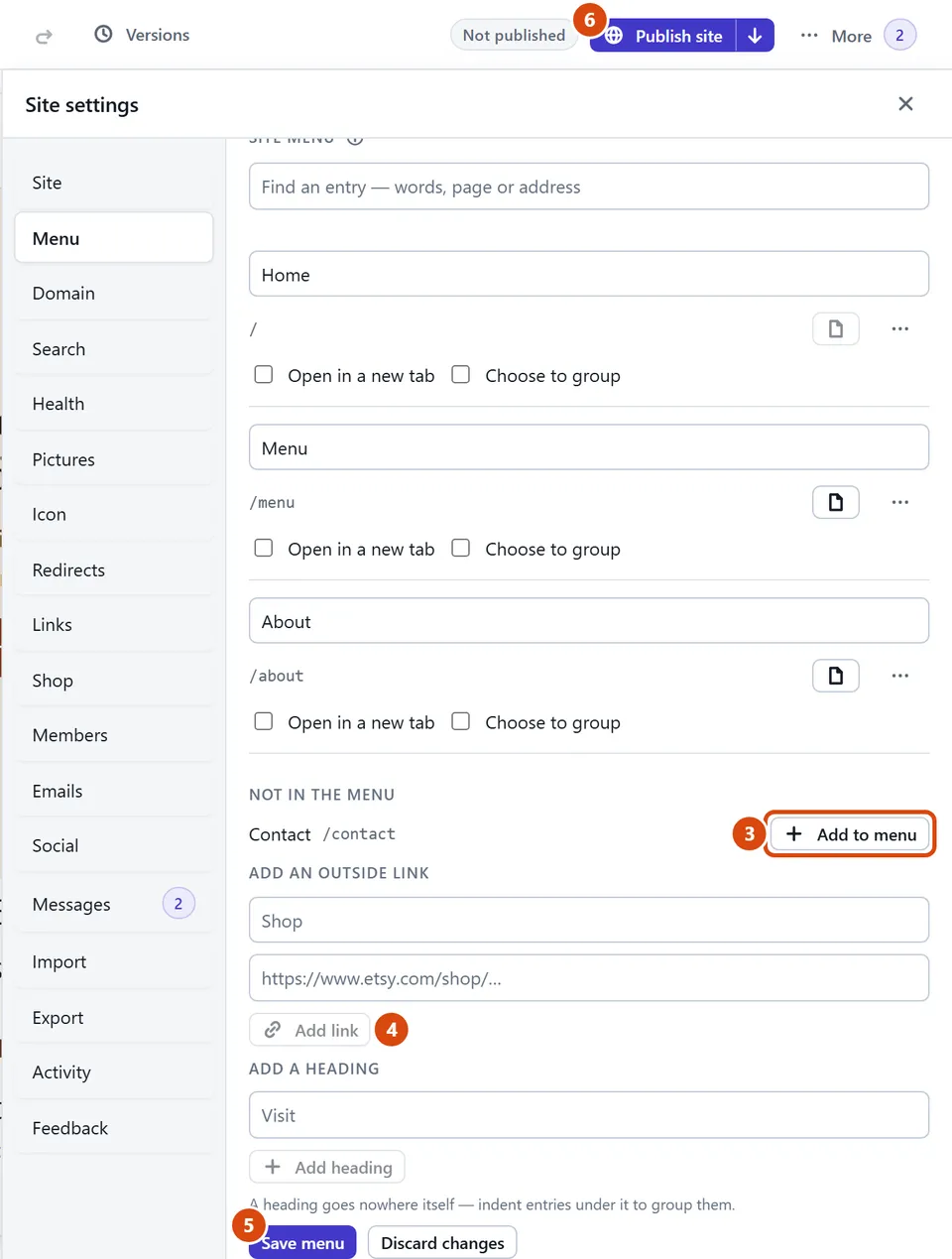
The editor, with Add to menu circled and each step numbered.

Or ask the Assistant: “Add my Prices page to the menu, after Home.”

Tip: New pages go into the menu by themselves, unless you untick “Show it in the site menu” when you add them.