Rename, delete or get back a page
Change a page’s name, remove a page you don’t need, or bring back one you deleted.
Steps
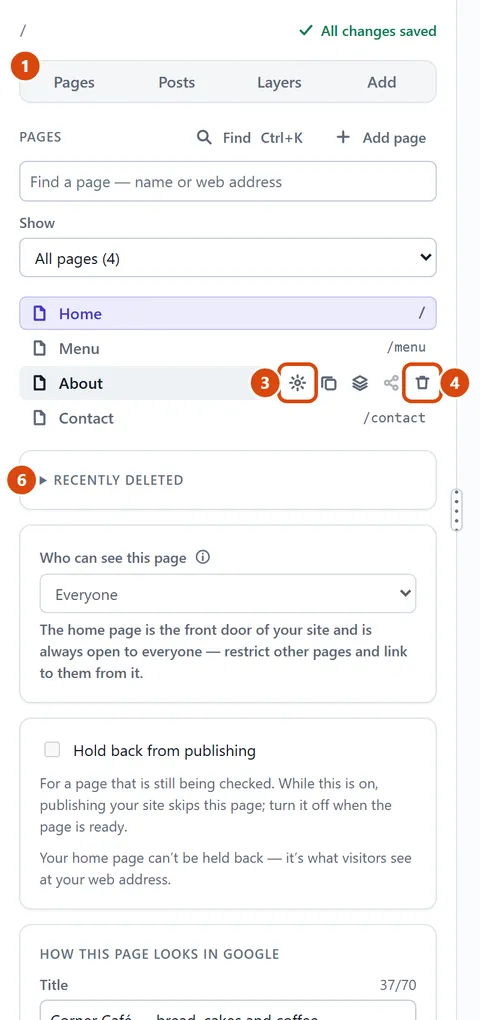
In the left sidebar, open Pages.
Point at the page in the list. Small icons appear at the end of its row: a gear, a copy, a stack of layers, share and a bin.
To rename it, press the gear icon (pointing at it shows Rename). Change the Page name, and the Web address if you want, then press Save.
To delete it, press the bin icon. It asks “Delete? Restorable for 30 days”. Press Delete to go ahead, or Keep to stop.
Deleted it by mistake? Press Undo in the notice that pops up.
Later on, open Recently deleted under the page list and press Restore beside the page. Deleted pages wait there for 30 days.
Or ask the Assistant: “Rename my About page to Our story.”
Tip: The home page can’t be deleted, because it’s what visitors see at your web address. You can still rename it.
Related: Add a page · Put a page in the menu
Next: Put a page in the menu
Still stuck? Contact support