Change the whole site’s colours and fonts
Give your whole website new colours and fonts in one go. Every page follows.
Steps
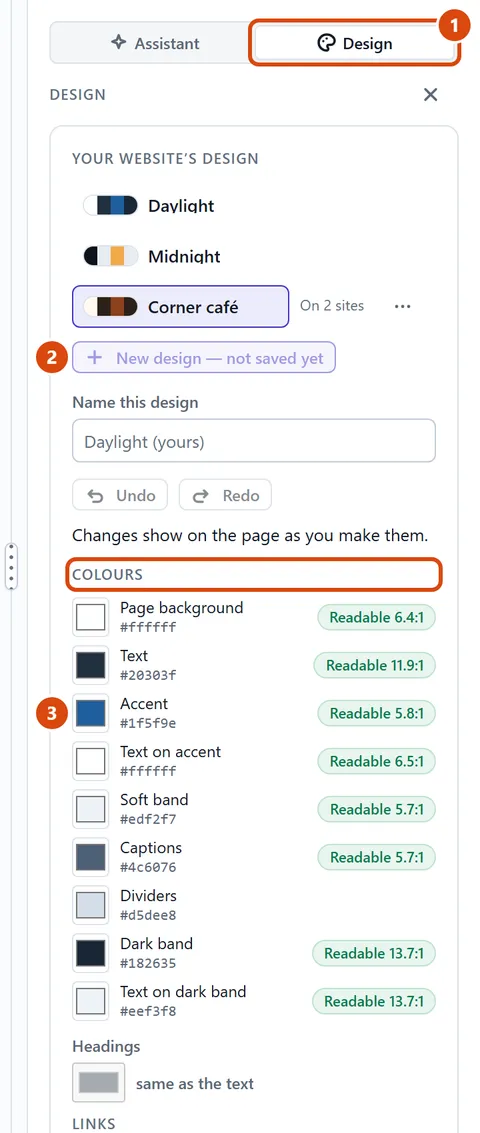
In the right-hand panel, press Design. If something on the page is selected, the Design button is at the top of its settings.
Under “Your website’s design”, press New design to start your own from the look you have now. (Already made one? Press it in the list instead.)
Under Colours, press a colour, such as Accent or Page background, and pick a new one. “Headings” colours every heading at once.
Under Type, open Headline font and pick one, then Body font. Handwriting fonts are in the list too; “Upload a font” adds a font file of your own.
Press Create this design (it says “Save my design” when you’re changing one you made). The page shows each change as you go.
Press Publish site so visitors see the new look.
Or ask the Assistant: “Give my site warmer colours with a dark green accent, and a friendly handwriting font for headings.”
Tip: New design greyed out? Your plan’s own designs are used up. Press the one you already have in the list and change that.