Change the colour or size of some words
Make a few words a different colour, or bigger or smaller than the words around them.
Steps
Double-click the text on the page, then select the words you want to change.
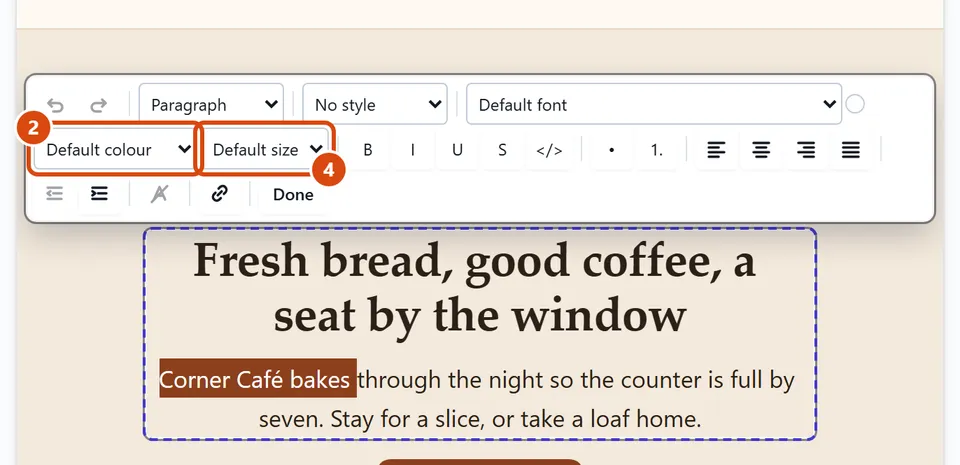
In the bar over the text, open Colour (beside Font). It shows “Default colour” until you pick one.
Pick one of your design’s colours. For any other colour, choose “Custom colour…”, pick it, then press Use this colour.
To make the words bigger or smaller, open Size (it shows “Default size”) and pick one, such as Large or Headline.
To put the words back, choose “Default colour” or “Default size” again.
Or ask the Assistant: “Make the words ‘Fresh every morning’ red and a bit bigger.”
Tip: If a colour would be hard to read on its background, the editor tells you. You can still use it.
Related: Put some words in a different font · Give one section its own background colour
Next: Link words to a page or another site
Still stuck? Contact support