Save a section to use again
Keep a copy of a section or block you like, so you can put it on any page of this website.
Steps
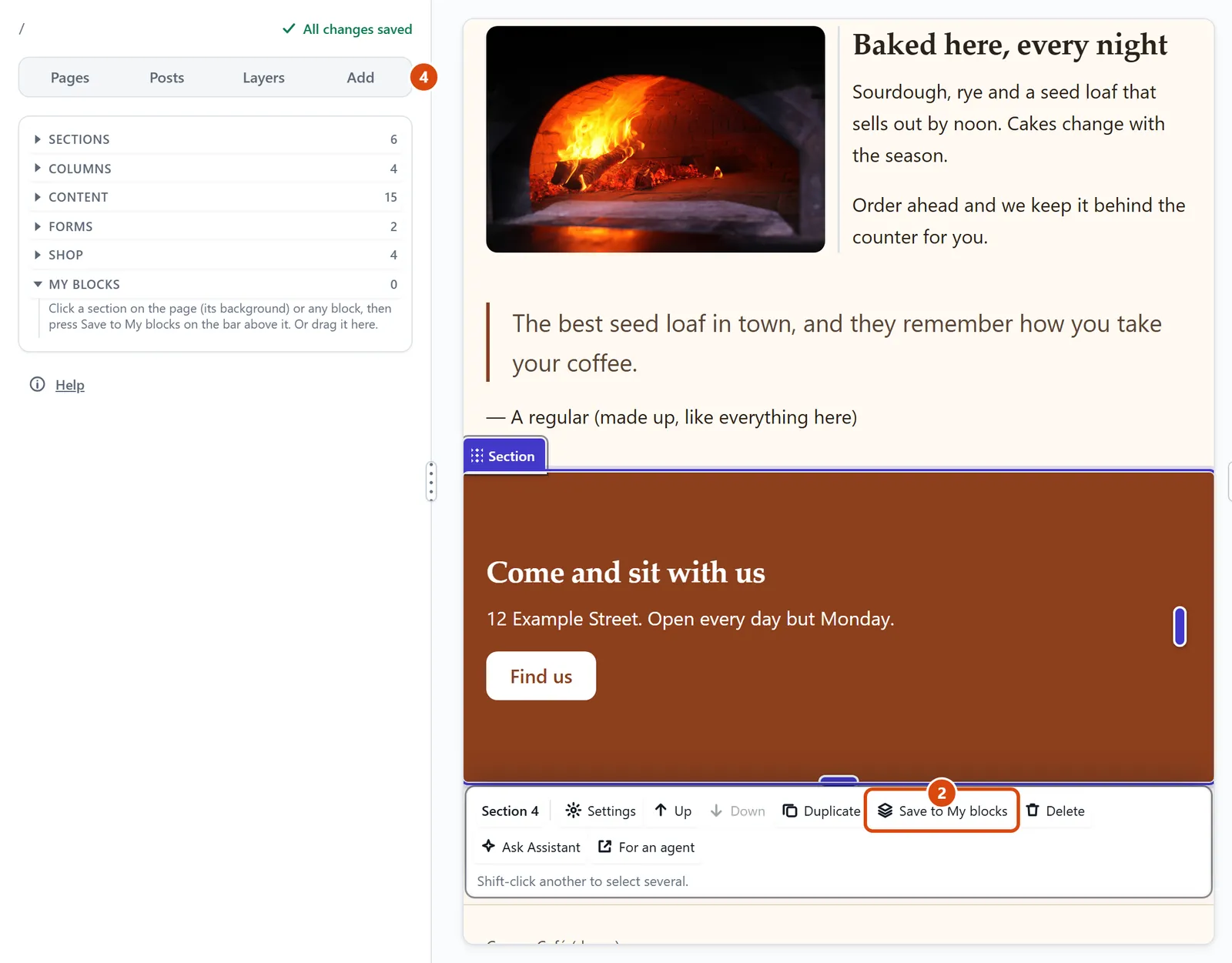
On the page, click the section’s background, or any block, to select it.
Press Save to My blocks on the small bar above it.
Type a name you will know it by, then press Save. The page itself doesn’t change.
To use it, open Add in the left sidebar and find it under My blocks.
Drag it onto the page. You can also double-click it to add it after the part you picked.
Or ask the Assistant: “Save the opening hours section to My blocks and call it Opening hours.”
Tip: You can only save one thing at a time for now. To save several blocks together, put them in a box first, then save the box.
Related: Add a section · Delete or copy something
Next: Make it look right on phones
Still stuck? Contact support