Let visitors search your site
Put a search box on your site, so visitors can find any page by the words on it.
Steps
Open More › Site settings › Site and, under Search on this site, turn on A search icon in the site header. A search icon goes beside your menu, on every page.
Or put a search box on one page: open Add in the left sidebar, look under Content and add Search this site.
Click the box on the page and open Settings to change the words in the empty box, show it as a box or an icon, or pick the side the results open on.
Publish your site. Visitors can search once it is published, and every publish brings the search up to date. Visitors press the search icon, type a few words and see the pages that match, with the words around each match; pressing one opens that page.
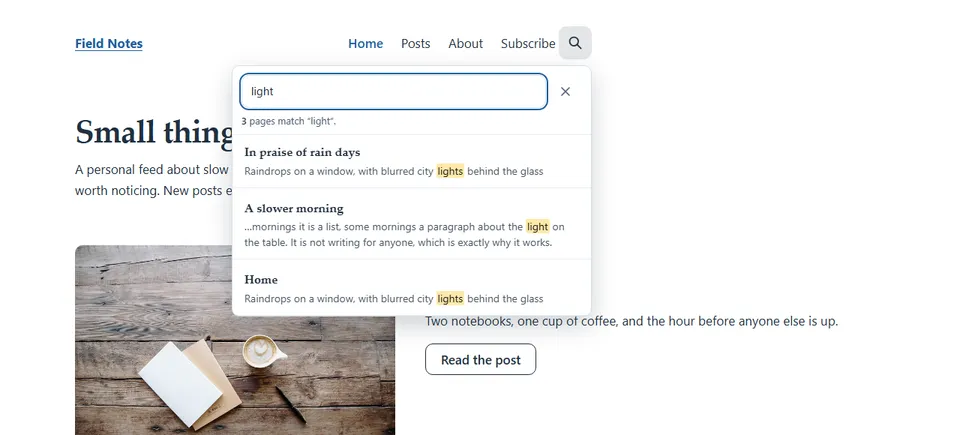
Or ask the Assistant: “Add a search box to my site header so visitors can search the site.”
Tip: Search for visitors is part of Pro: on a Free site, Search on this site offers Upgrade to Pro instead of the switch. Members-only and paid pages are found by their words but show only how to open them, never their text. To keep a page out of search, open it, choose the Page tab, then In Google and when shared, and turn on Hide from site search.
Related: Add text, a button, a divider or social links · Put your site on the web
Next: Add a picture
Still stuck? Contact support