Steps
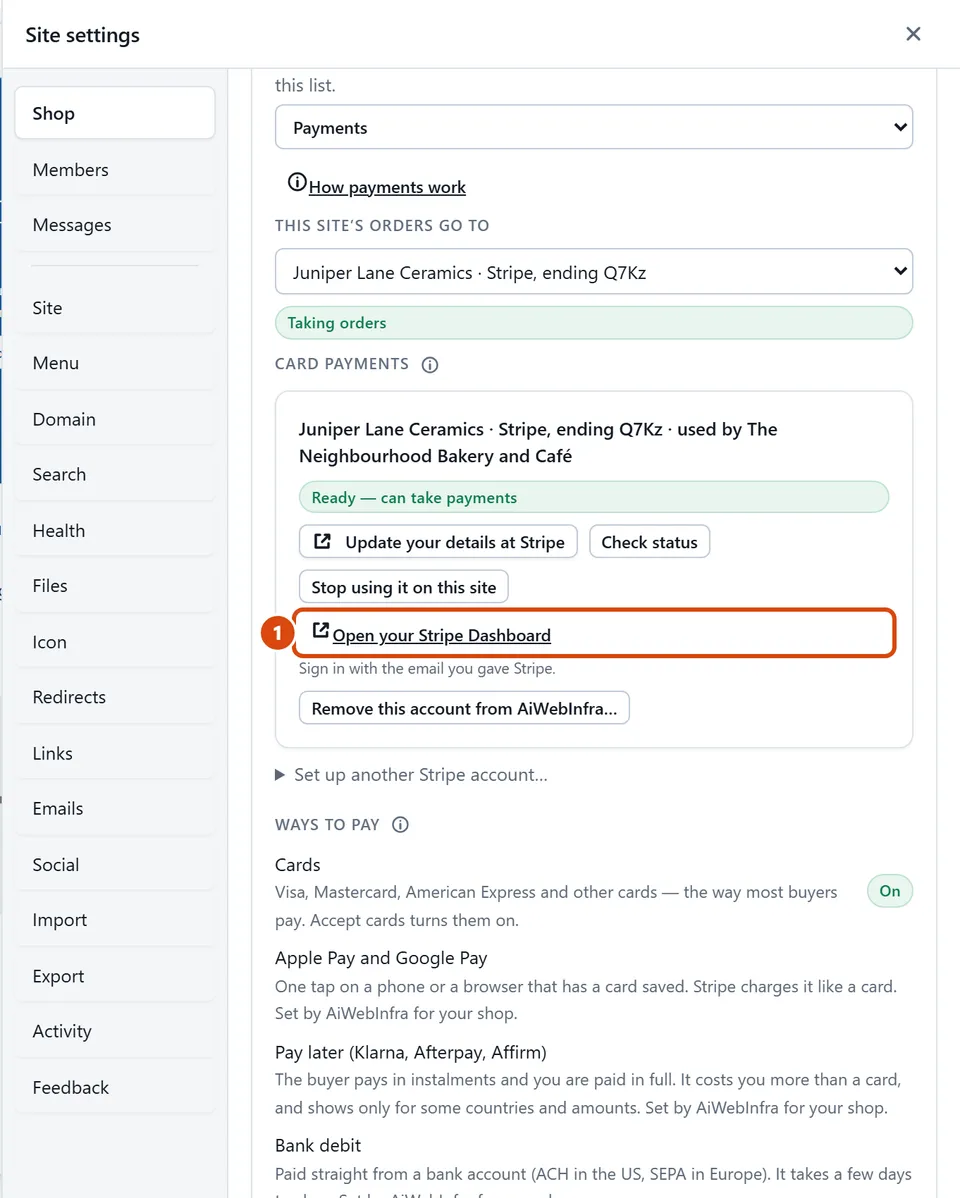
Press Shop at the top of the left panel, choose Payments, and press Open your Stripe Dashboard under your account. Stripe opens in a new tab.
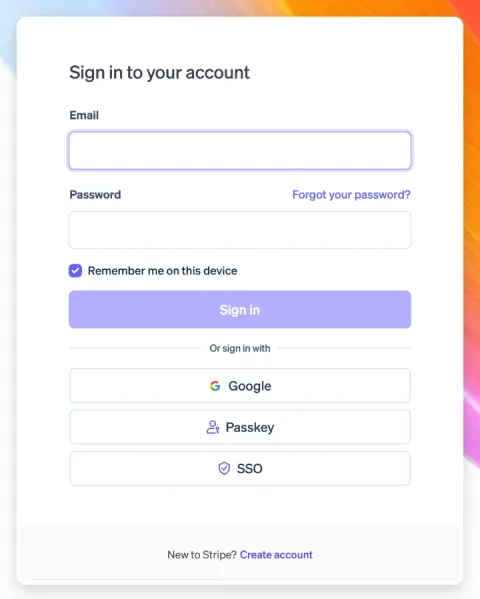
Sign in with the email you gave Stripe. That login is between you and Stripe: AiWebInfra never sees it.
To find an order’s payment, copy the Stripe payment reference shown on the order in Orders, and search for it in the Dashboard. Its refunds and any dispute are with it.
Your balance and each payout to your bank are under Balances. New accounts start on automatic daily payouts.
Your business details live under Settings › Business, including the name buyers see on their card statements.
Where things are
Payments, refunds and disputes: search the Dashboard for an order’s Stripe payment reference. A dispute is answered there, in your Stripe account.
Payouts: under Balances, with the schedule. Keep an automatic one (daily, weekly or monthly) so money reaches your bank by itself.
The name on card statements, and the support phone and address buyers see: Settings › Business › Public details. Use a business phone and address, not your home ones, if you have them.
Sales tax: Settings › Tax, where Stripe Tax is set up (see Sales tax, VAT and GST on Take card payments).
Receipts Stripe emails to buyers: in Settings, under customer emails, if you want them beside your site’s own order email.
What AiWebInfra sets for you
Settings › Payment methods may say AiWebInfra is managing payment methods for you. That is expected: the ways buyers can pay in your shop are set from Shop › Payments › Ways to pay here, not there.
Your country is fixed when the account is made: Stripe cannot change it later.
AiWebInfra takes no percentage of the sales made on your site; your payment processor’s own fee still applies.
Removing an account, or closing it
Stop using it on this site, beside the account in this site’s Payments, unlinks only this site: it stops taking orders at once, and the account stays in your list for your other sites.
Remove this account from AiWebInfra, under the account, takes it off every site. Removing it here unlinks it from AiWebInfra: the sites using it stop taking orders, and the Stripe account stays yours, with its payments and payouts. To close the Stripe account itself, open it at Stripe: Settings › Business › Account details › Close account. Remove it here first: closing it at Stripe first leaves your sites pointing at an account that’s gone. Closing ends your access to its records, refunds and disputes, so close it only when it is no longer needed.
Or ask the Assistant: “Where do I see my payouts in Stripe?”
Tip: Your Stripe Dashboard is Stripe’s own site, not part of AiWebInfra. Sign in with the email you gave Stripe.
Related: Set up card payments with Stripe: what to have ready · Take card payments
Next: Charge for shipping, or let buyers collect
Still stuck? Contact support